Add members to your team
The Team page allows you to add colleagues to your CryoCloud team so everyone can view projects and datasets (according to their permissions), collaborate efficiently, and troubleshoot challenging workflows by directly inspecting job results.
When you create a new CryoCloud account, you automatically become the team owner with admin rights.
Invite new team members
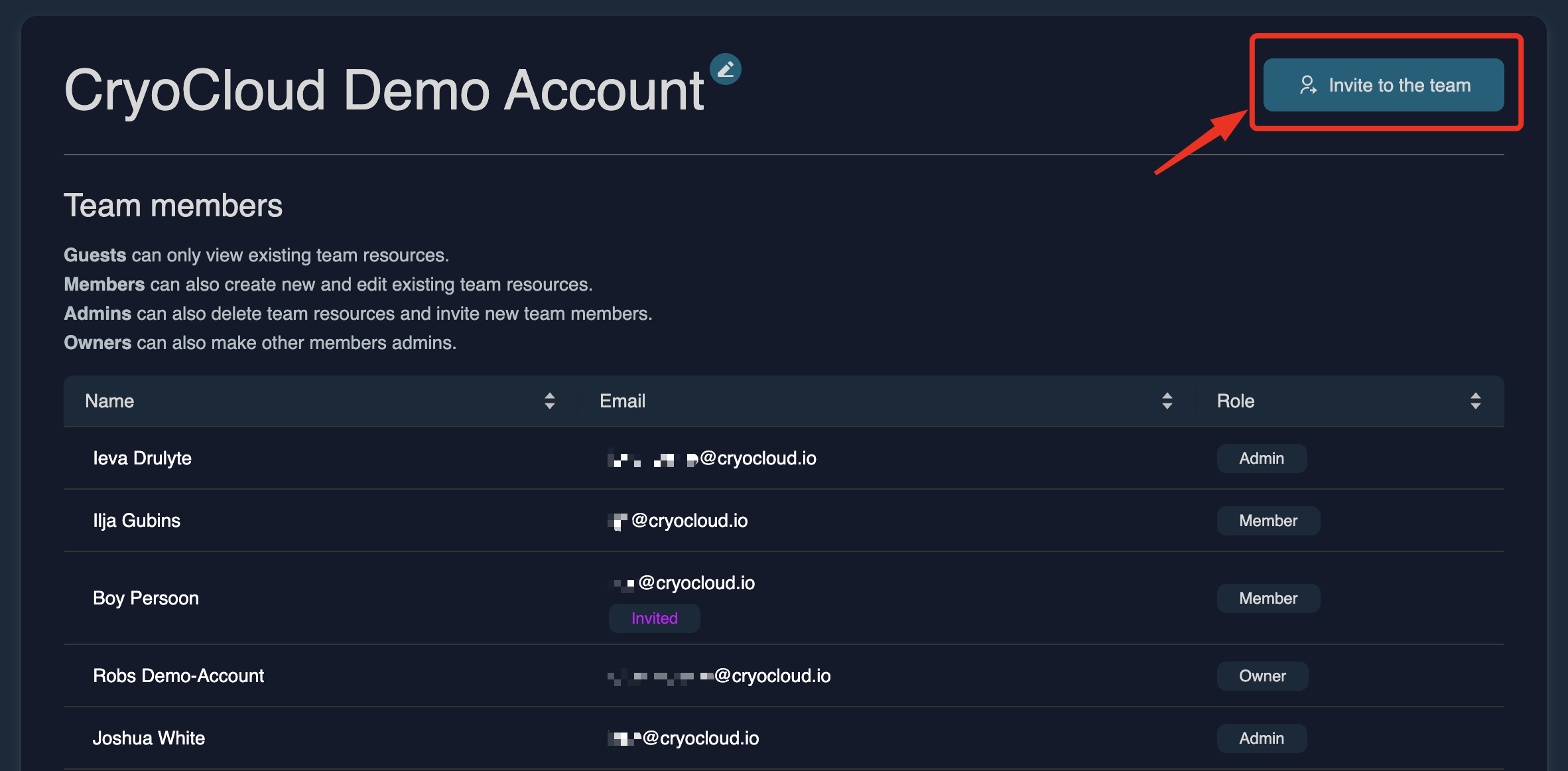
To add your colleagues to the team, navigate to the Team tab on the left side of the dashboard and click on Invite to the team.
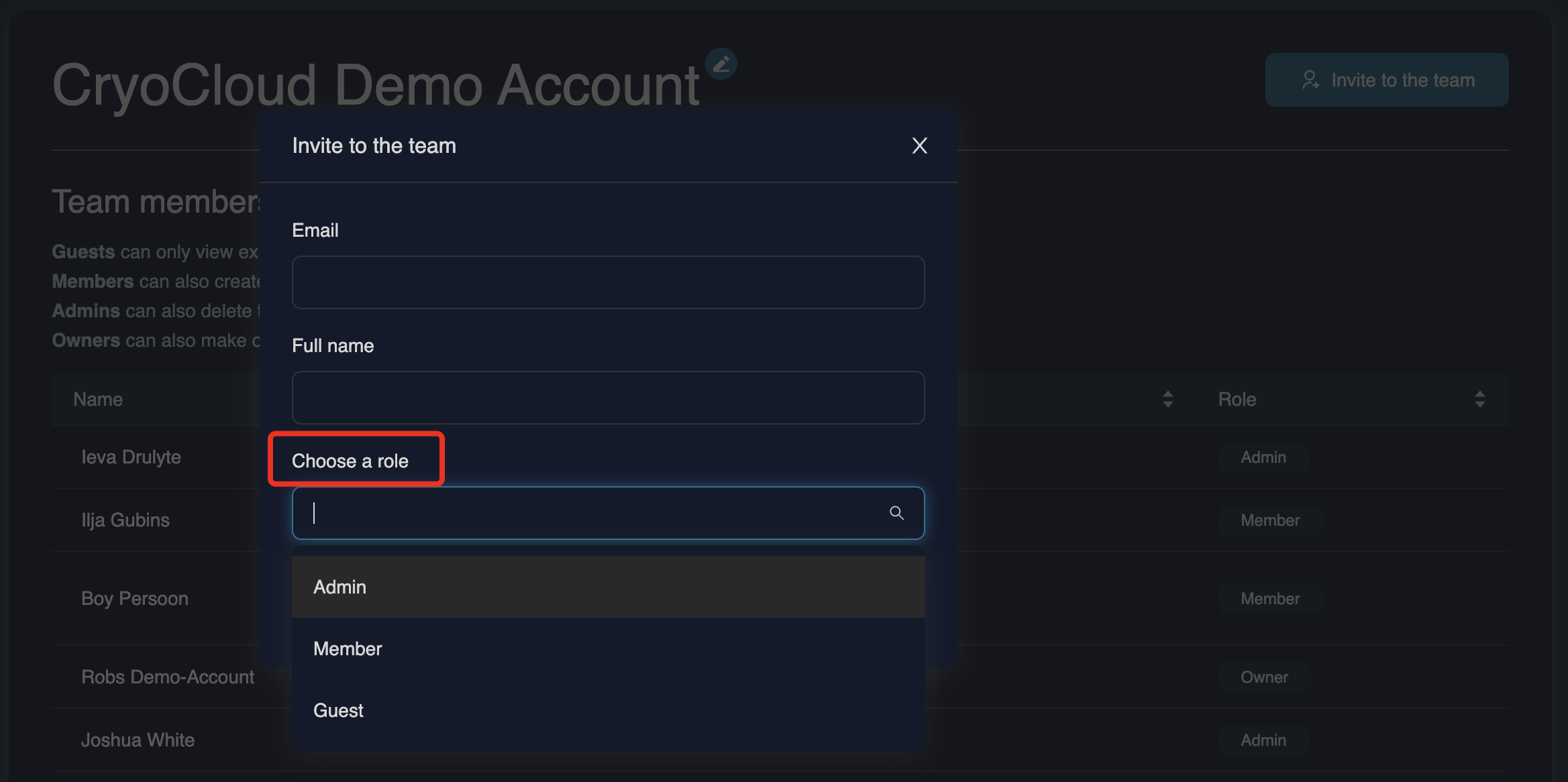
Enter your colleague's name and email address and select the appropriate permission level. You can choose between the following roles:
• Admin – Can view all datasets and projects, manage team members, and delete team resources
• Member – Can create new datasets and run jobs. Members can only view datasets and projects that have been explicitly shared with them.
• Guest – Can view only the specific datasets and projects shared with them. Guests cannot create new datasets or run jobs.
Once you click Send invitation, the invited user will receive an email prompting them to confirm their address and set a password. After completing this step, they will be able to log in with the permissions you assigned.
Seat availability
You can only invite new team members if you have available seats.
To check how many seats your team has and how many are still available, visit the Billing page.
•   Trial accounts include 5 seats for free.

•   Paid plans include a predefined number of seats depending on the subscription tier. Additional seats can be purchased if needed.
Recommended usage
To help you assign the right role:
•   Admin – For supervisors, project leads, and senior scientists who manage multiple projects or make budget decisions.

•   Member – For scientists actively processing data.

•   Guest – For external collaborators who only need access to specific projects. N.B. Currently, you can only invite users who share the same email domain as your team. To invite collaborators with a different domain, please contact us.
For more detailed information on user roles, permissions, and team management, see the Teams page